Collaborators
You don't have to run your websites alone. Invite collaborators to your workspace and they get the same dashboard you do: every website, every feature, every submission.
The Team page
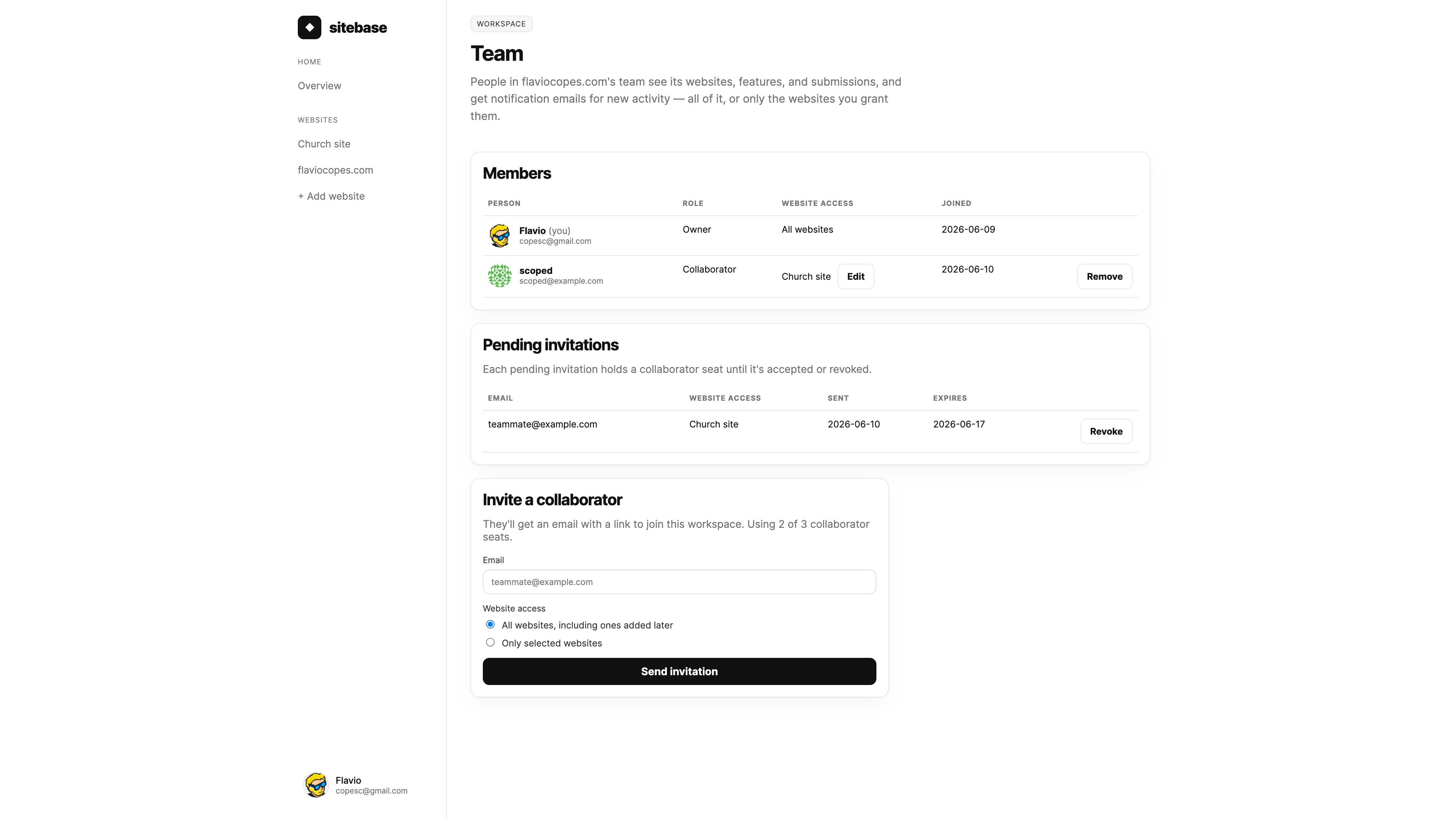
Open the account menu in the bottom-left corner of the dashboard and pick Team. The page lists everyone in the workspace, any invitations that haven't been accepted yet, and — if you're the owner — a form to invite someone new.
Inviting someone
Enter their email and send the invitation. They receive an email with a link; opening it shows who invited them and what they'll get access to, and one click signs them in and adds them to the team. They don't need to create anything first — if they're new to Sitebase, accepting the invitation is their signup.
Invitations expire after 7 days, and you can revoke a pending invitation from the Team page at any time. A revoked or expired link stops working immediately, and you can re-invite the same address afterwards.
Scoping a collaborator to specific websites
By default a collaborator gets the whole workspace — every website, including ones you add later. But often that's more than you want to share: say you built a website for your church or a local soccer team, and you're handing day-to-day management to the people who actually run it. They should see that website and nothing else.
The invite form's Website access picker handles this: choose Only selected websites and tick the sites the collaborator should manage. A scoped collaborator's dashboard contains just those websites — the others don't appear in their sidebar, their pages can't be opened, and email notifications only cover the sites they can access. They also can't add new websites to your workspace.
You can change a member's scope at any time with the Edit button next to their website access on the Team page — widen it to all websites, or narrow it to a different selection. Changes apply immediately.
Collaborator seats
How many collaborators you can have depends on your plan: Starter includes one collaborator besides you, Plus tiers include from 3 up to 20. Pending invitations hold a seat until they're accepted or revoked, so you can't oversubscribe by sending extra invites. When all seats are taken, the Team page points you to billing to upgrade.
What collaborators can do
Within their website access, collaborators work with everything: they see the same dashboards and data, manage features, approve testimonials, and tweak website settings. They also receive notification emails for new activity, with their own personal preferences. Only the workspace owner can invite or remove people and change website access.
Removing a collaborator takes effect immediately — their next click lands on the login page, and signing in again won't bring the workspace back.
Belonging to several workspaces
If you accept an invitation while already having your own workspace, you belong to both. The account menu grows a Workspace section listing them; pick one to switch the whole dashboard to it.
Next: Account and billing